Beginner Guides
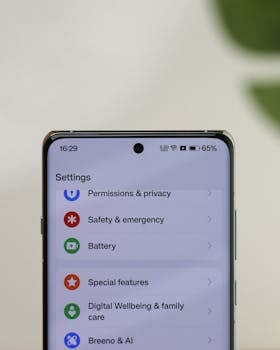
Essential Mobile Settings New Users Miss
Tired of battery drains, noisy notifications, or privacy worries? Explore these overlooked mobile settings—tweak them today for a calmer, safer, and more efficient smartphone experience!
Advertisement
Starting with a new phone feels like opening a box of endless surprises and tools, yet most folks never look beyond the basics, letting key mobile settings slip away unnoticed.
Missing a few mobile settings can create tiny headaches: poor battery, unnecessary notifications, or privacy leaks. Small tweaks ensure your device becomes a helpful partner instead of a noisy distraction.
Every new user can get more from their device. Explore the following sections to discover clever ways to tailor mobile settings and unlock control over your daily tech experience.
Setting Up Battery Optimization for Longer Use
Personalizing battery optimization extends time between charges, so your phone finishes the day with power to spare and fewer interruptions from low-battery warnings.
Many overlook these mobile settings because most phones arrive with basic settings enabled, yet just a couple of changes make a huge real-world difference in battery life.
Customize App Power Use for Reliability
Navigate to the battery optimization menu and tap specific apps you rely on, such as messaging or calendar. Set each to unrestricted or optimized, depending on frequency.
If an app says “background restricted,” you’ll miss messages silently. Keeping reminders and navigation unrestricted ensures important notifications arrive on time, every time.
Anyone saying “I didn’t get your notification” might have background limits in place. Adjust this setting, say to “Unrestricted,” then check if missed alerts resume appearing without delay.
Turn Down Screen Brightness with Adaptive Lighting
Set screen brightness to “adaptive” so your phone dims in low-light conditions and brightens outside, protecting your eyes and subtly extending battery life throughout real use.
This feature automatically changes your display, so you’re not left squinting or searching for a slider. You’ll feel relief on a dim commute or during long scrolling sessions at night.
Adjusting this mobile setting once means your phone uses only the power required for clarity, saving energy for when it’s needed most during calls, maps, or game sessions.
| Setting | Where to Find | Best For | Actionable Takeaway |
|---|---|---|---|
| Battery Optimization | Settings > Battery > App Optimization | All Users | Review every two months for apps draining battery. |
| Adaptive Brightness | Settings > Display > Brightness Level | Frequent Phone Use | Enable adaptive to balance clarity and power use. |
| Background Activity Limit | Settings > Battery > Background Activity | Privacy and Efficiency | Set messaging apps to unrestricted. |
| Dark Mode | Settings > Display > Dark Theme | Evening Use | Switch on after sunset to save battery. |
| Battery Saver | Settings > Battery > Battery Saver | Travel Days | Enable during long trips for extended phone endurance. |
Curating Notifications for a Peaceful Experience
Control over notifications means fewer interruptions, allowing you to manage what matters and silence what doesn’t without ever missing a critical alert in your mobile settings.
A person tweaking notification settings only once discovers a calmer day and a less distracting phone, reducing stress without missing genuine reminders or texts.
Silencing Unwanted Alerts from Social Apps
Visit the Notifications section in your mobile settings and scroll down to social apps. Uncheck or mute unnecessary categories, such as “likes” or “friends joined”.
Doing this, you allow only genuine conversations or group invites to appear, so you stay connected while ignoring viral trends or unwanted games.
- Mute non-essential app notifications to reduce stress and distraction; access app settings and toggle off alerts for updates, offers, or friend suggestions that add no value.
- Prioritize reminder-based notifications for tasks, calendar events, or medication; enable only the categories that support your schedule so alerts work as tools, not interruptions.
- Tune chat app notifications by controlling which conversations are allowed to alert you; set family and emergency contacts to “Always Allow,” silence group chats after work.
- Edit lock screen notifications to show only essential previews; in mobile settings, choose between “Show All” or “Hide Sensitive” for more privacy when your phone’s on a table.
- Pause notifications with Do Not Disturb mode at scheduled times; set weekdays for work hours, enable overnight silence so crucial sleep or meetings go uninterrupted.
Configuring notification categories replaces anxiety with confidence in your device; copy this approach for social, shopping, and delivery apps for a noiseless screen.
Boost Productive Alerts on Messaging Apps
Within each messaging app, adjust in-app notification options separate from system settings to fine-tune sound, badge, and vibration for different friends or groups.
Set critical work chats to a different sound or persistent alert so you catch important instructions even while in noisy surroundings or with your device in your bag.
- Assign priority status to direct supervisors or close partners for instant notification access; this highlights their messages even if your phone is on silent or vibration mode.
- Disable vibration for nonurgent contacts to streamline alerts; turn on banners for family only so other group message pings don’t overload your status bar during family time.
- Enable custom sounds for urgent threads; select a unique chime so those chats always stand apart without needing to unlock your phone for every buzz or beep you hear.
- Sync notification settings across devices using built-in platform tools; ensures you get the same alert prioritization on tablet, work phone, or watch.
- Review all message thread alerts each weekend, tightening or loosening filters based on changing priorities; this simple review takes minutes, ensuring responsiveness doesn’t overwhelm you.
With these mobile settings, your phone helps instead of dominates your day, making communication reliable yet unobtrusive as circumstances shift week by week.
Adjusting Privacy Controls to Protect Your Data
Enabling strong privacy in mobile settings reduces the risk of information leaks, keeping your location, contacts, and daily activity details safe from prying eyes.
Adjusting privacy controls doesn’t require technical skills—simple switches and permissions fine-tune who sees what and when, empowering new users to set ground rules for their devices.
Minimize Location Sharing with App Permissions
Visit each app’s permissions within your mobile settings, then toggle location access to “While Using” instead of “Always,” drastically cutting background tracking and errant battery drain.
Think of it like lending your house keys—you’d only give them out when you know the person and reason. Adjust your map and delivery app permissions for case-by-case use.
This small step leaves your movements private while granting exceptions for navigation or urgent pickups. Copy this setting template: “Allow location just for directions, not for background access.”
Limit Ad Personalization Across Devices
Tap into the “Privacy” section and find advertising options, then switch off both “Ad Personalization” and “Interest-based Ads.” This cuts down on customized marketing invading your feeds.
Just like opting out of mail advertisements, this mobile setting lets you still browse content without being trailed by travel ads or suggestions unrelated to your real interests.
Apply this to your browser and popular apps. When done, revisit ad preferences every few months, ensuring new app installations haven’t reversed your custom privacy rule set.
Fine-Tuning Display and Accessibility for Comfort
Giving attention to display and accessibility mobile settings not only eases eyestrain but also speeds up navigation for users of every age and skill level on their devices.
Visual tweaks offer a big impact: clear fonts, better contrast, and appropriate motion settings support both new and lifelong users, making devices less fatiguing by the minute.
Increase Text Legibility Without Affecting Layout
Open display settings and increase font size or enable “bold text.” This change helps reading clarity in apps, messages, and notifications without distorting menus or button placement.
Many overlook this setting, assuming it crowds the screen. Actually, it increases comfort, especially when scanning lists, contacts, or app instructions in busy or low-lit rooms.
Set a slightly larger size and bold text, then preview a text message. If reading feels easier, keep the change, saving eye effort for more interesting tasks than squinting.
Adjust Animation and Reduce Motion for Focus
Reducing screen animation can lower sensory overload—a subtle improvement for those sensitive to moving menus or transitions. Go to accessibility, select “Reduce Motion,” and keep transitions simple.
This mobile setting also improves performance on some devices, shortening delays between app launches or menu changes. Fewer visual flairs mean faster task switching and clearer focus on the content at hand.
Try this: open and close apps in quick succession before and after toggling Reduce Motion. Notice smoother, speedier navigation without flashy distractions getting in your way.
Creating Secure Login Practices For Peace Of Mind
Enabling secure login options within mobile settings helps you avoid accidental account lockouts and keeps personal data safe, especially if your phone is ever misplaced.
Many users skip setup for facial recognition or fingerprint unlock, thinking “later,” but configuring them on day one means less risk and speedier lock screen access, every single time.
Set Up Two-Factor Authentication for Key Accounts
Go to your app and online account security settings. Add two-factor authentication using a mobile authenticator, security code, or biometrics for double-layer protection on email, banking, and social apps.
Copy this script: “Enable two-step for bank and email now; save your backup codes.” This single step provides a critical extra wall against unauthorized access.
Check two-factor logins monthly for accounts where passwords or codes have changed. Keep backup methods current—if you lose your primary device, alternate options let you recover access smoothly.
Review Auto-Lock and Instant Lock Options
Set your phone’s auto-lock to the shortest comfortable interval, like 30 seconds or one minute. Combine that with “lock instantly,” so your screen secures immediately when you press the power button.
This routine keeps curiosity-driven hands from browsing your photos, messages, or wallet apps if your phone is left unattended at home, work, or in public places.
Like locking the door after entering, get in the habit: lock your phone immediately after use. Teach family the same, ensuring their devices guard privacy without delay.
Managing Connectivity Features for a Smoother Routine
Balancing Wi-Fi, mobile data, and Bluetooth settings guarantees a smoother, less wasteful daily routine—preventing slow loading times and unwanted data fees with regular mobile settings checks.
Take time to define rules for connections. Each toggle and custom schedule brings consistency, slashing surprise bills and lost connections when you need your most reliable apps up and running.
Schedule Wi-Fi Usage for Better Battery and Privacy
Within Wi-Fi settings, set “auto-connect” to your trusted home and work networks, but disable for public or unfamiliar hotspots. This stops your device from accidentally joining insecure networks.
Scheduling Wi-Fi off at night or while outdoors also limits unwanted scans, extending battery and ensuring you stay in control of your own connections by default.
Copy this hack: tap the Wi-Fi toggle off before leaving home, reducing background data drain until you’re ready for reliable, trusted connections.
Limit Bluetooth and Data Access in the Background
In connection settings, set Bluetooth off by default when not using headphones or car mode. Activate only on demand—this reduces security risks and intrusive pairing pop-ups.
For mobile data, restrict background access to must-have apps in mobile settings. This keeps social and entertainment apps from devouring your data plan without warning.
Add a reminder: every Sunday evening, scroll your data usage list. Turn off background data for any app using more than expected so you stay in control and under your limit.
Moving Forward With Customized Mobile Settings
Adopting these mobile settings turns technology into an ally, ensuring your phone adapts to your needs instead of dictating how you interact each day.
Each adjustment, from privacy switches to notification filters, builds a smoother flow and gives you confidence managing your digital environment without stress or confusion.
Continue exploring and refining mobile settings. Small, regular tweaks keep your device efficient, private, and comfortable, unlocking value and peace of mind for every user, every day.